
AiSynth
English

Video sound planning

Using an ai sound generator for video free in your workflow

A silent edit can feel unfinished, but the wrong effect can make a scene feel less believable. Use aisynth to think through the cues your video needs, then check the available sound-generation options and terms before using any result.

Check available options on arrival
aisynth landing visual

The cut is ready, but the sound is not

A useful cue must match the action, the room, and the pace of the edit. These four common situations call for different prompts and different checks.

Short-form editor

A quick product reveal needs a restrained transition cue. Describe the movement and desired energy rather than asking for a generic cinematic impact; a loud effect can overwhelm a close-up.

For broader prompt ideas beyond a single cut, see aisynth online generator, which focuses on describing the sound you want to explore.
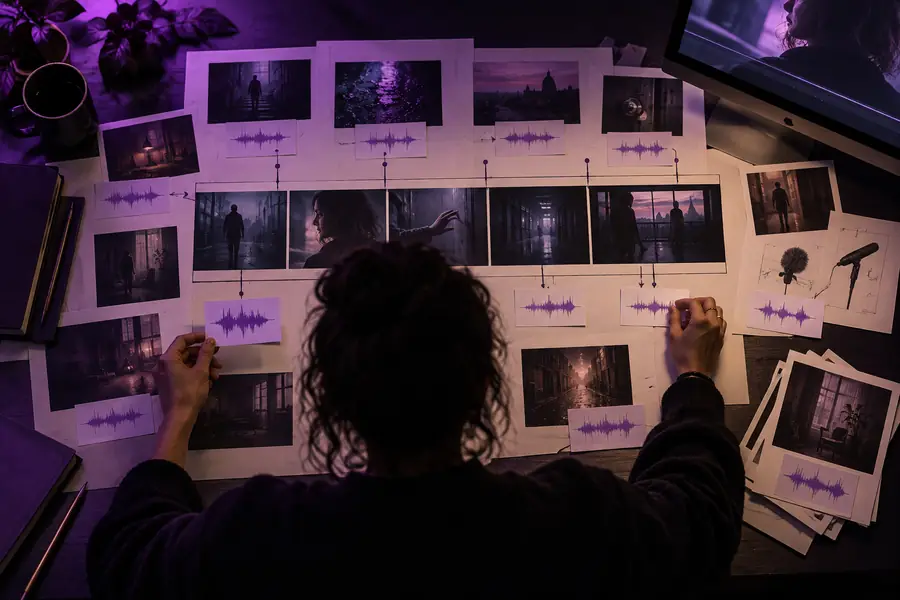
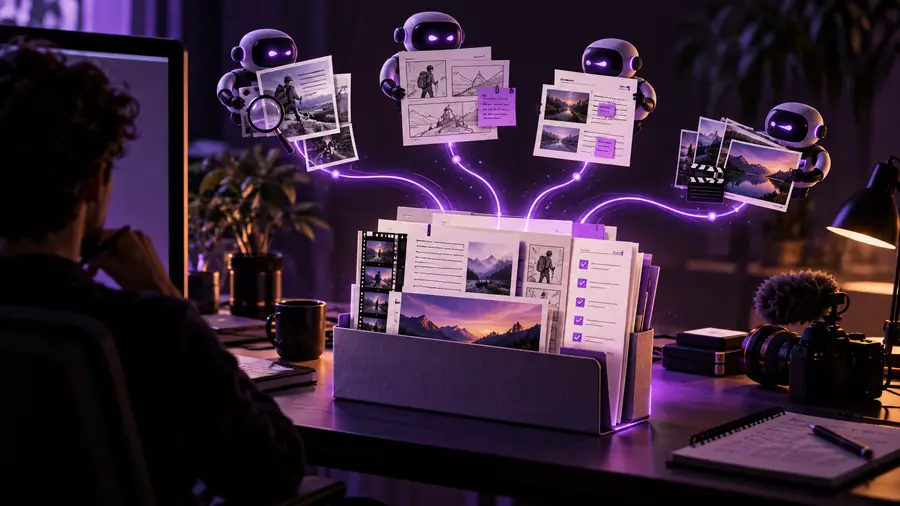
aisynth online generator

Tutorial maker

A screen recording needs subtle confirmation sounds at key actions. Keep each cue brief enough to leave the spoken explanation clear, and listen at the level viewers will actually use.

For a closer look at working in a browser, see aisynth online app and its discussion of the online surface.

aisynth online app

Documentary editor

A location shot has missing ambience. Write down what the camera shows and what the microphone captured first; adding an implausible crowd or weather sound could change the scene's meaning.

For prompts centered on individual effects, see ai sound effect generator from text, which covers describing a specific sound event.

ai sound effect generator from text

Social video creator

Several versions of a clip need the same audio mood. Establish a short list of cue descriptions before editing, then compare each candidate against the same reference cut.

For access questions before starting, see aisynth online free and check what the destination actually offers.

aisynth online free

Three workflows for placing a cue

Work from the picture outward: identify the event, describe its acoustic context, and test the result against the edit.

  1. 1

    Mark the moment

    For an action cue, note the frame where contact occurs and the point where its tail should fade. A door closing in a quiet room needs a different sound from the same door in a busy hallway. If several actions happen close together, choose which one the viewer needs to hear most clearly.

  2. 2

    Describe the sound

    For an ambience bed, name the setting, distance, intensity, and sounds to exclude. A prompt such as gentle ventilation in a small office, no speech or music, gives a more testable direction than make this scene atmospheric. Keep a separate description for each distinct cue rather than combining the entire soundtrack in one request.

  3. 3

    Check it in context

    For a transition or reveal, audition any candidate under dialogue and music, not just in isolation. Trim or replace a cue if its attack misses the visual event, its tail masks the next line, or its texture clashes with nearby production audio. Check the destination's available controls and usage terms before committing it to the final edit.

Check fit and rights before publishing

An ai sound workflow can help you explore a cue, but it cannot verify the scene, clear rights, or finish a mix on its own.

1

No automatic sync guarantee

A described sound does not know the exact contact frame, pacing, or edit points in your timeline. Even a suitable result may start too early or ring out across a cut.

What to do instead

Place the cue against picture, adjust its timing in your editor, and listen through the transition on both sides.

2

No automatic rights clearance

A search for an ai sound generator for video free does not establish that an output can be used commercially, redistributed, or published without attribution. Access and licensing are separate questions.

What to do instead

Read the destination's current terms for the specific output and keep a record of the conditions that apply to your project.

3

No substitute for a final mix

A promising effect may still compete with speech, exaggerate an action, or sound out of place beside recorded audio. Headphones alone may hide problems that appear on a phone speaker.

What to do instead

Compare levels under dialogue, check the sound on more than one playback device, and remove any cue that distracts from the scene.

Example: from silent action to a cue brief

For a quiet office scene, the goal is not simply to add a door sound. It is to specify a soft close that supports the action without covering the next spoken line.

Visual reference for planning sound around a video scene
Scene to review
Illustrative reference for reviewing a proposed sound direction
Cue direction to test

Illustrative images, not a recording or a verified generated result. Example brief: soft interior door close, close perspective, no voices or music, short natural decay. Audition any candidate against the actual cut.

Scene to reviewCue direction to test

Take a precise brief into the next step

If you are evaluating an ai sound generator for video free option, bring one clearly described cue and a reference cut. Explore the available options, confirm the applicable terms, and judge any result in context before it enters your video.

Start with the scene, not a generic effect

  • Name the visible action and acoustic setting.
  • Specify what the cue must not contain.
  • Check timing, mix, and usage terms before publishing.
Explore sound options

Questions about sound for video

That depends on the terms attached to the tool and the particular output. Check whether your intended use, including commercial publication if relevant, is permitted before adding the sound to a finished video.

Describe the visible event, the setting, the listener's distance, and the sound's intensity. Add exclusions such as no speech or music when those would interfere with the edit, then compare any result against picture.

Do not assume it will. Mark the action in your editing timeline, place the candidate cue against that moment, and check its start and decay through the following cut.

No. The ability to try a tool and the right to publish its output are different matters, and available access may change. Review the current terms for the destination and the type of video you plan to make.

Separate distinct sounds when their timing or purpose differs. An ambience bed, an action cue, and a transition each benefit from a focused brief and an individual check in the mix.

Start creating
Start creating